Dolphin Imaging software is an FDA-cleared Class II medical device
The Dolphin 3D software is a powerful tool that makes processing 3D data extremely simple, enabling dental specialists from a wide variety of disciplines to diagnose, plan treatment, document and present cases. Dolphin 3D allows visualization and analysis of craniofacial anatomy from data produced by cone beam computed tomography (CBCT), MRI, medical CT and 3D facial camera systems.
Dolphin 3D software is already widely used by research/teaching institutes and private practices worldwide. It features tools for onscreen manipulation and analysis of volumetric datasets: Images are easily oriented and rotated, and tissue density thresholds can be adjusted for detailed views of craniofacial anatomy. Measurements and digitization can be performed in both 3D and traditional 2D.
Dolphin 3D includes powerful yet intuitive tools for you to process multidimensional datasets. There are no complicated commands or scripting languages to learn. Processing and analyzing three-dimensional data has never been easier.
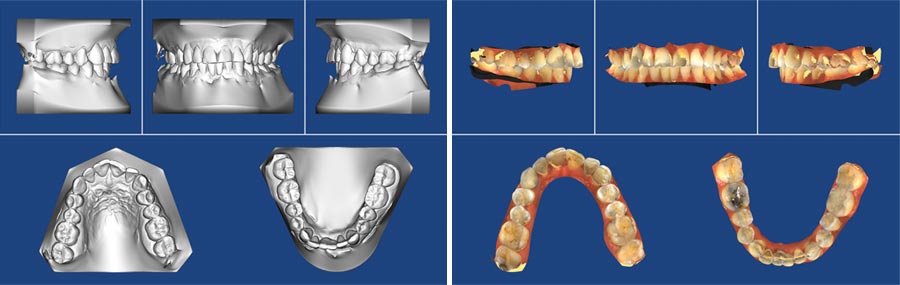
3D Digital Study Model software works with all intraoral and study model scanners that export to .STL and .OBJ file format, and also seamlessly integrates with CEREC Omnicam and CEREC Ortho Software from Sirona.
Once your study model data is imported, you can:
Set occlusion and orientation.
Display the models in various surface and volume views.
Take various 3D measurements.
Run traditional 2D arch-length-discrepancy analyses.
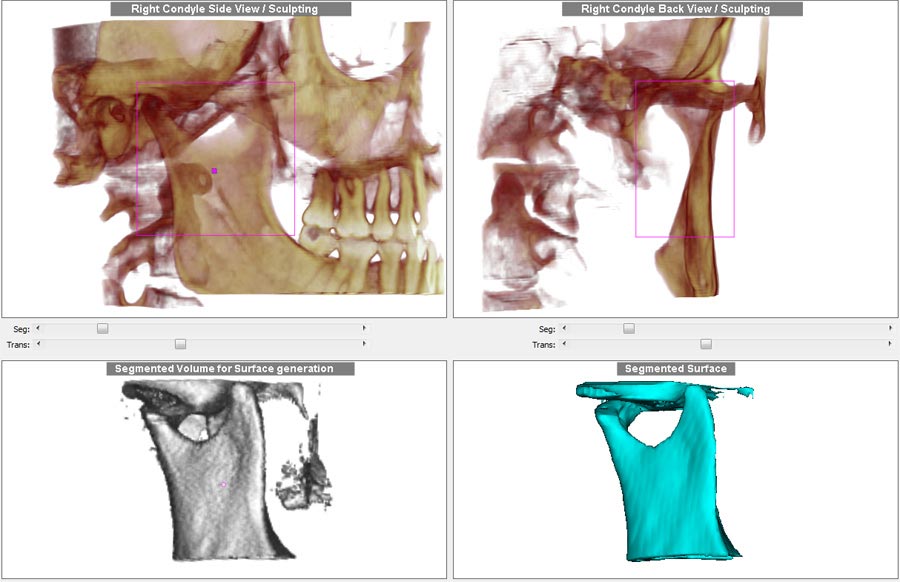
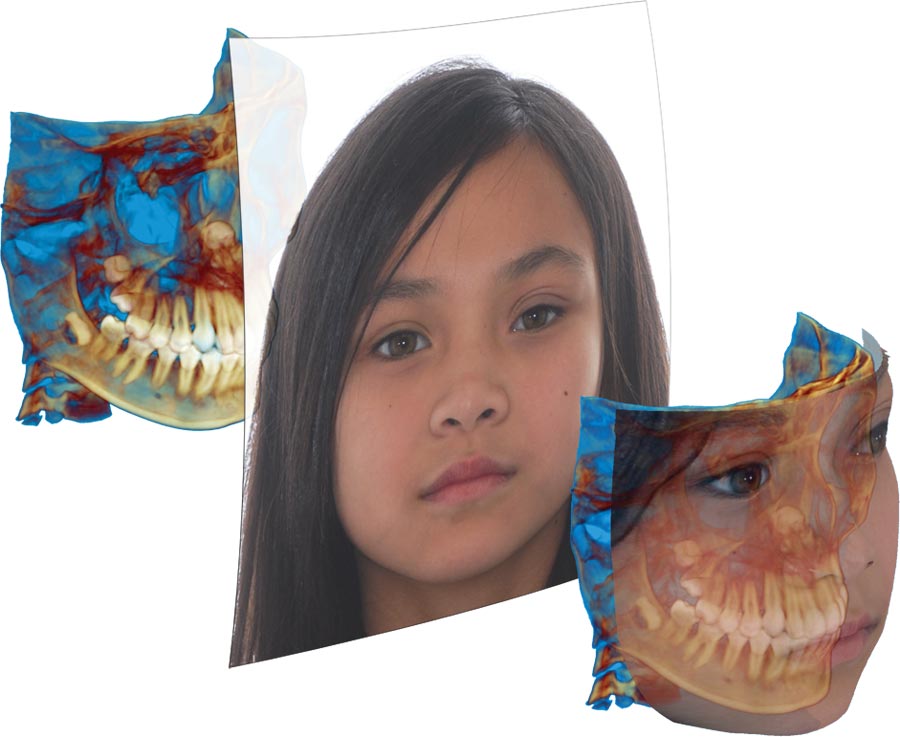
You prepare the 3D object by grouping intensity levels in pre-set ranges for soft tissue and hard tissue. After this simple procedure, you can easily review the object’s solid or translucent skeletal surface; solid, translucent, or photo of soft tissue surface; or both simultaneously. Views can be combined, such as translucent skeletal structures with translucent soft tissue 3D photo facial texture map.
Dolphin gives you the power to freely visualize the volume in 3D. In addition to switching from hard tissue and soft tissue views, you can also adjust the factor of translucency and intensity to reveal the structure you desire. Color tools help to further clarify anatomy and their spacial relationships.
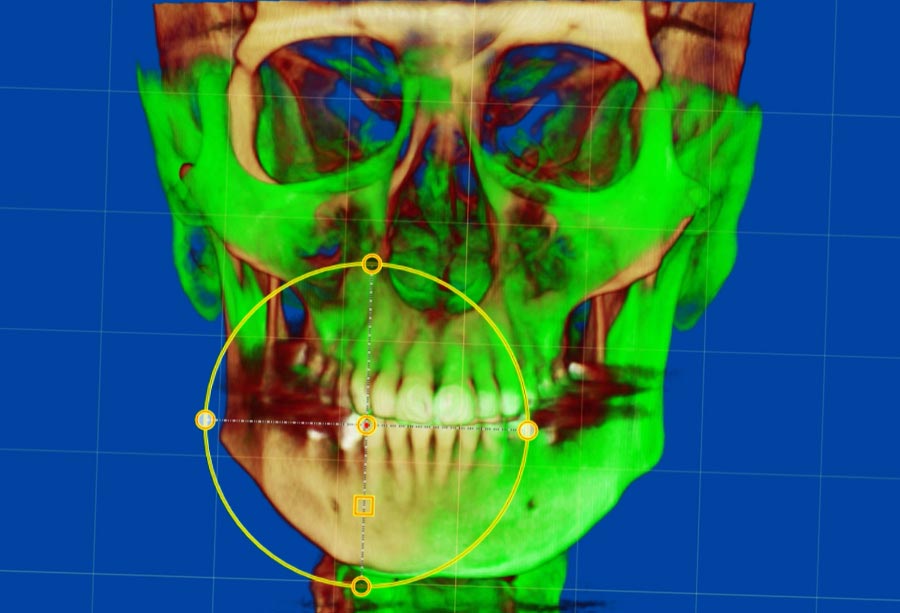
Clipping tools allow you to quickly visualize hidden structures, or simply eliminate portions of the contents that are not relevant.
Establishing a default orientation is crucial to maximize the consistency of analysis of a 3D volume. Dolphin 3D provides tools for defining the midsagittal, axial and coronal planes. You can orient the volume based on an angle, such as the Frankfort plane. You can also adjust the object’s default yaw, pitch and roll. These operations can be performed on the CT soft tissue surface, CT hard tissue surface or 3D photo surface.
After a scan has been oriented, take advantage of the pre-set views: front, back, right, left, top, bottom, oblique and isometric views.
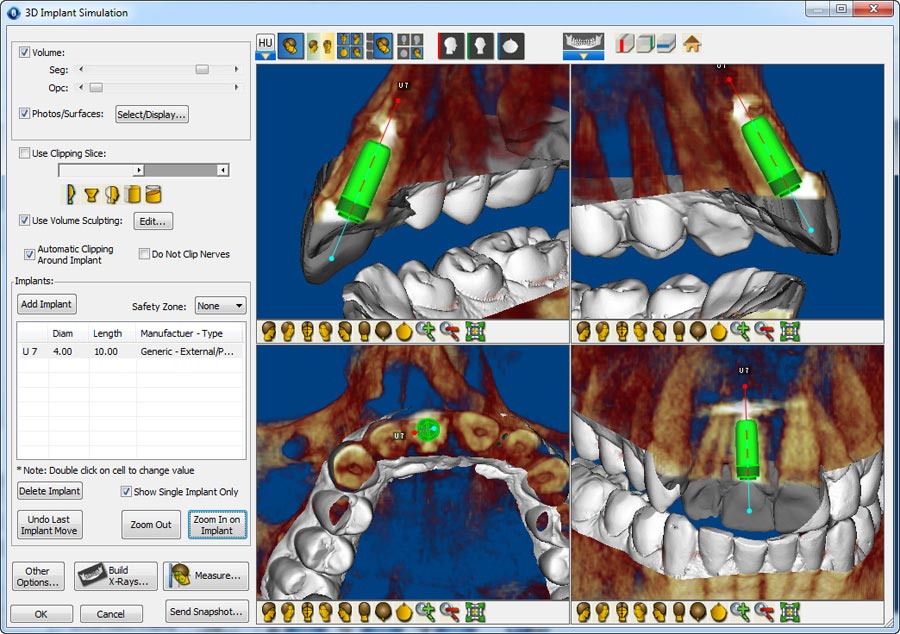
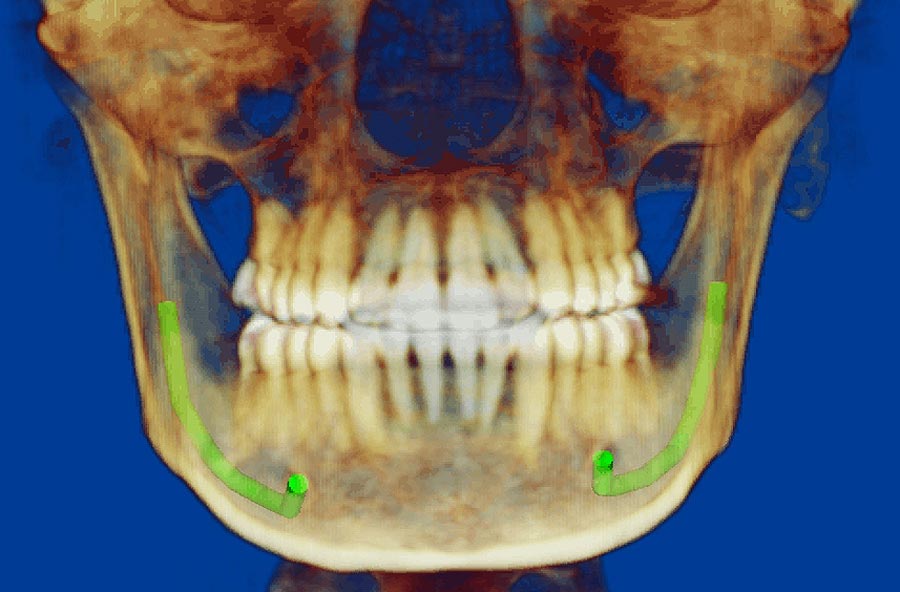
Easily add implants to a patient’s 3D image for more precise treatment planning and presentation. Place, move, and rotate implants on the volume, slice or panoramic views. Select implant types from a generic implant template library and specify the size. Zoom in and out on an implant; define a “safety zone” around each; segment and sculpt the volume to clip around the implant; measure distances and angles; locate nerve canals; export the final simulation as an iso-surface.
Comprehensive library of implants from the industry manufacturers.
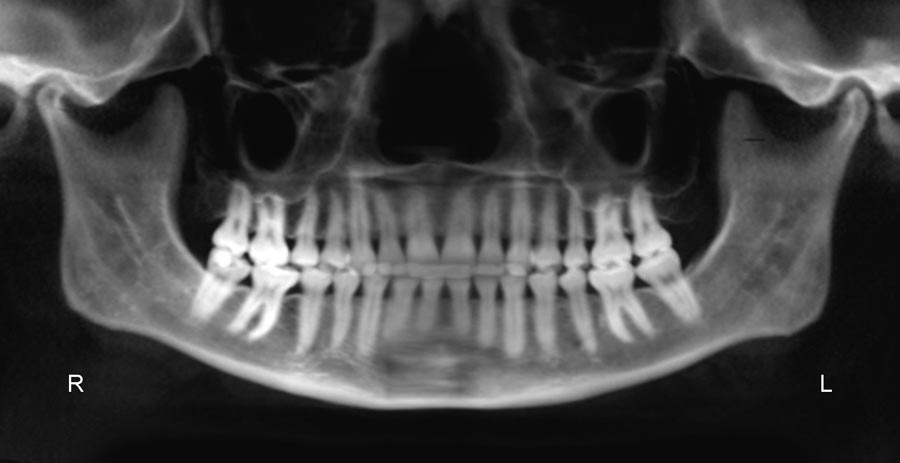
Create two-dimensional radiographic images from 3D volume dataset in the lateral, panoramic (OPG), frontal and SMV views. Reconstruct radiographs in:
1:1 projection (no distortion, no magnification).
Simple orthogonal/magnification projection (input % of magnification desired).
Complex “traditional x-ray perspective” projection (input detailed x-ray machine geometry; most accurately simulates traditional x-ray).
Image filters help emphasize different structures of interest; including: MIP (maximum intensity projection), Ray-sum (academic standard) and a collection of Dolphin proprietary filters.
Radiographic images can be saved in the Dolphin Imaging database for report generation and two-dimensional cephalometric tracing (Dolphin Ceph Tracing software required for 2D tracing).
Dolphin 3D makes harvesting data from 3D volume simple, and is an excellent tool for research and data collection.
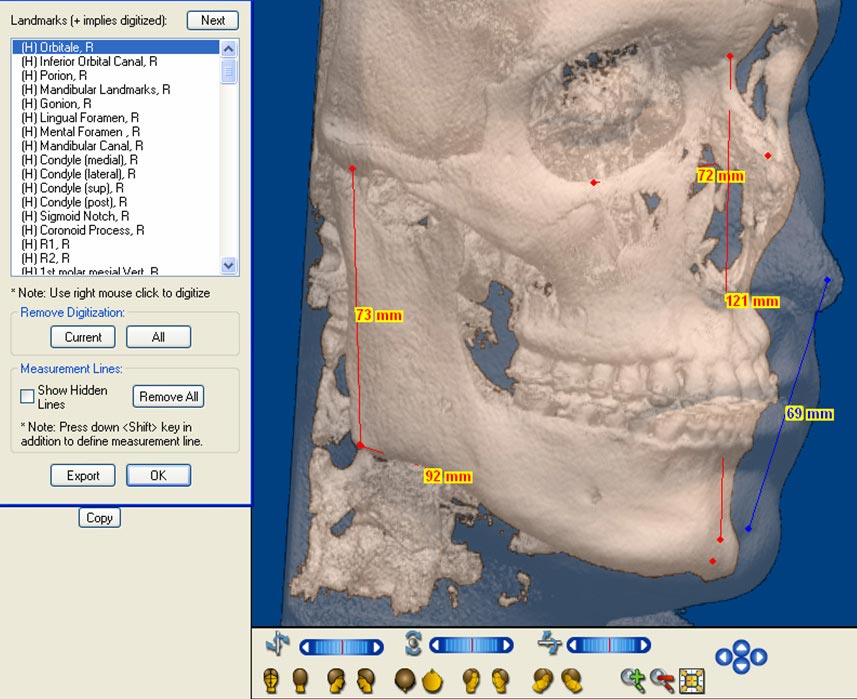
You can measure distances and angles in 3D; design your own analysis in 3D or in 2D (Dolphin Ceph Tracing software required for 2D analysis).
Analyze the airway by drawing a border around your selected portion of the volumetric scan; the program will automatically fill in and display all the airway space within that border, then report back telling you the volume of airway space in cubic millimeters. It will also locate, display and measure, in square millimeters, the most constricted spot of that airway.
Landmarks can be used in a 3D analysis or translated into identified 2D lateral or frontal cephalometric analyses, such as Roth-Jarabak, McNamara, etc. Further, the 2D points can include x-ray magnification to be compatible with existing norm values.
Digitized landmarks can be saved in Dolphin Imaging and exported to a Microsoft Excel spreadsheet or other numerical analysis programs.
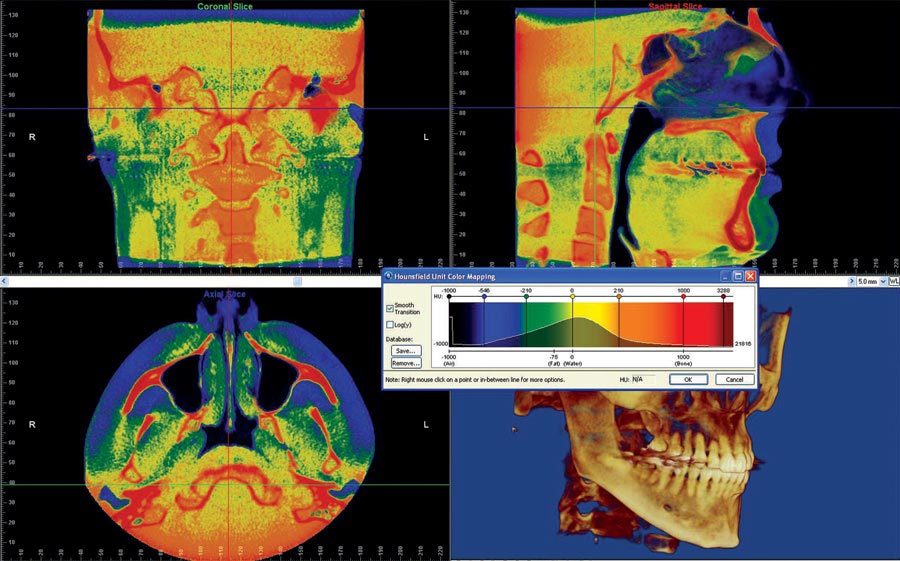
New in Dolphin 3D is the Hounsfield Unit Color Mapping tool, which helps you distinguish between different biological structures according to their radiolucency measurements. A graph displays the colors as they fall on the Hounsfield Scale as a reference, while the image on the screen is colored in accordingly.
Easily create a texture map on the facial surface of any CBCT, CT or MRI scan. Simply import the 2D frontal photo, and Dolphin 3D guides you through a quick and simple stepby-step process to add the photo to the 3D volume. No additional devices or add-ons are needed to create this wonderful visual identity for any patient’s 3D volume.
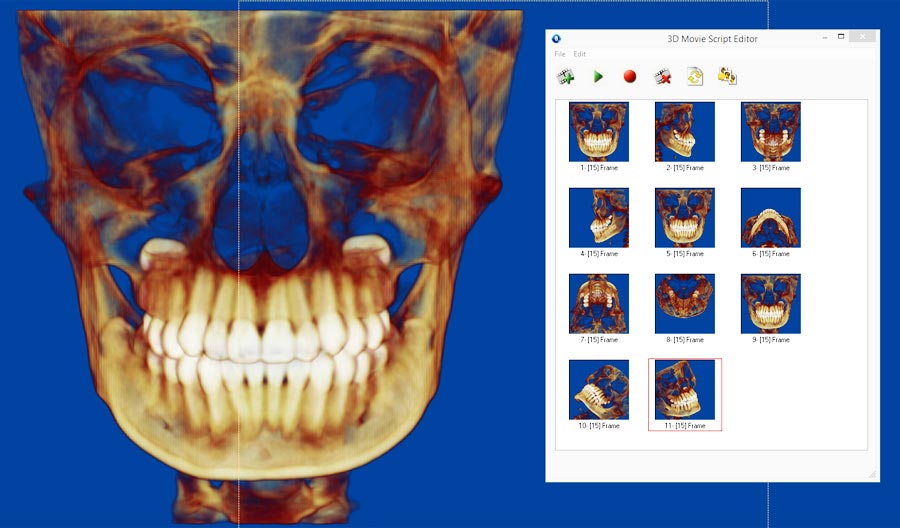
Automatically create animated movies by collecting “key frames” from your 3D volume or slice views. By altering the volume’s position, zoom factor, translucency, segmentation, clipping and timing attributes, create a movie script which may be reused for volumes of other patients.
Dolphin 3D then creates a smooth animated movie from your script. Spin, fly-by and seethrough your volumetric object. Distribute movie files, add them to your Microsoft PowerPoint presentation, or play them on your iPod or other portable media player. You control the movie’s speed, resolution, quality and file size with selectable video settings.
You can also export the script’s key frames as individual images. Create a composite set of image layouts of your 3D volume for later viewing or for transfer to referring clinicians.
Create diagnostic reports from your volumetric dataset. You build a workup report specific to a patient’s indication and the specialty of the referral. Build your own library of templates for implant sites, TMJ, impaction studies, tissue pathology, sinus and airway evaluation, and more; a library of existing templates is provided.
The template is easily populated on the fly with desired images and cross sections from the volume. Reports can be exported to a document file or hardcopy printout.
Windows Vista, 7, 8, 8.1, 2003 Server, 2008 Server, or 2012 Server. Standalone or server installs require Windows 7 SP1, Server 2008 R2 or above.
For all operating systems, Dolphin supports both 32- and 64-bit versions, and supports Business, Pro, Enterprise, and Ultimate editions.
Dolphin recommends Windows 7, 8, or 8.1. The Dolphin 3D system requires 4GB of RAM, and works best with 8GB.
The fastest and highest quality rendering modes of Dolphin 3D require a 512 MB or more video card, based on one of these DirectX graphics engines or better: NVIDIA 87400 GS, ATI HD 5450 or Intel HD4600.